English · Español · Português (Brasil) · Português (Portugal) · Français · Deutsch · Italiano · Русский · 日本語 · 한국어 · 简体中文
To-do lists that turn into mind maps
Most to-do apps give you one flat list. In Dendra a list is a map: tasks sit under other tasks, carry due dates and notes, and the whole list becomes a mind map whenever you want to see the big picture. Free, in the browser.
Open this example Start from a blank map
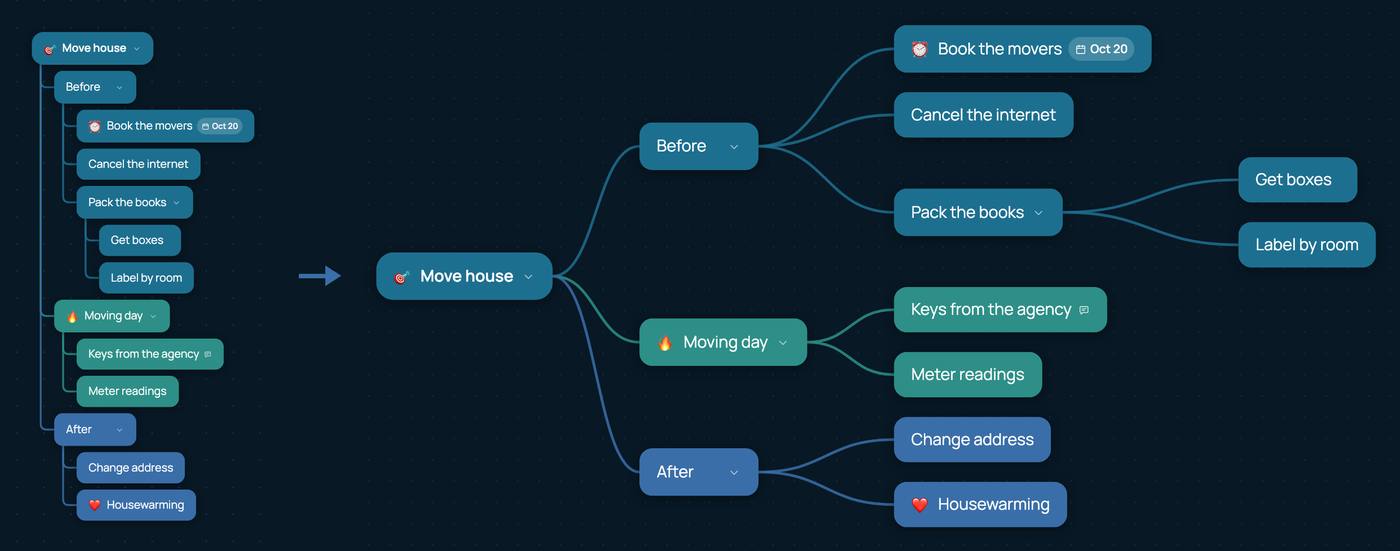
When a list should be a map
A move, a trip, a launch or a wedding is not one list but several: things to do before, on the day and after. A flat list hides that shape, and a long one hides which part is still heavy. As a map, each phase is a branch, and you can see at a glance where the work is.
How to make a to-do list in Dendra
- Start a list. Press Maps, then New, and choose To-do list. It opens in the Outline layout with the first task ready to type.
- Type the tasks. Enter adds the next task, Tab a sub-task under the one you are on.
- Add due dates. Give a task a date and it shows on the bubble. When you open the map, Dendra says what is late or due soon, and Tools › Due dates lists every deadline in order.
- Tick tasks off. The ✓ files a task in Tools › Completed. Its sub-tasks move up instead of vanishing, and a task ticked by mistake can come back.
- See it as a map. Open Tools › Layout, pick Bilateral or Tree and press Apply. Switch back to Outline at any time; nothing is lost.
Tips
- Keep one list per project. The free plan covers three maps; Dendra Pro has no limit.
- Use colours for places or people, and icons such as 🔥 or ❗ for what comes first.
- Add a note to a task for the detail that does not fit in one line: an address, a phone number, what was agreed.
- Send the list in a link so someone else gets their own copy, or export a PDF to print it.
About Dendra · Manual · Terms · Privacy